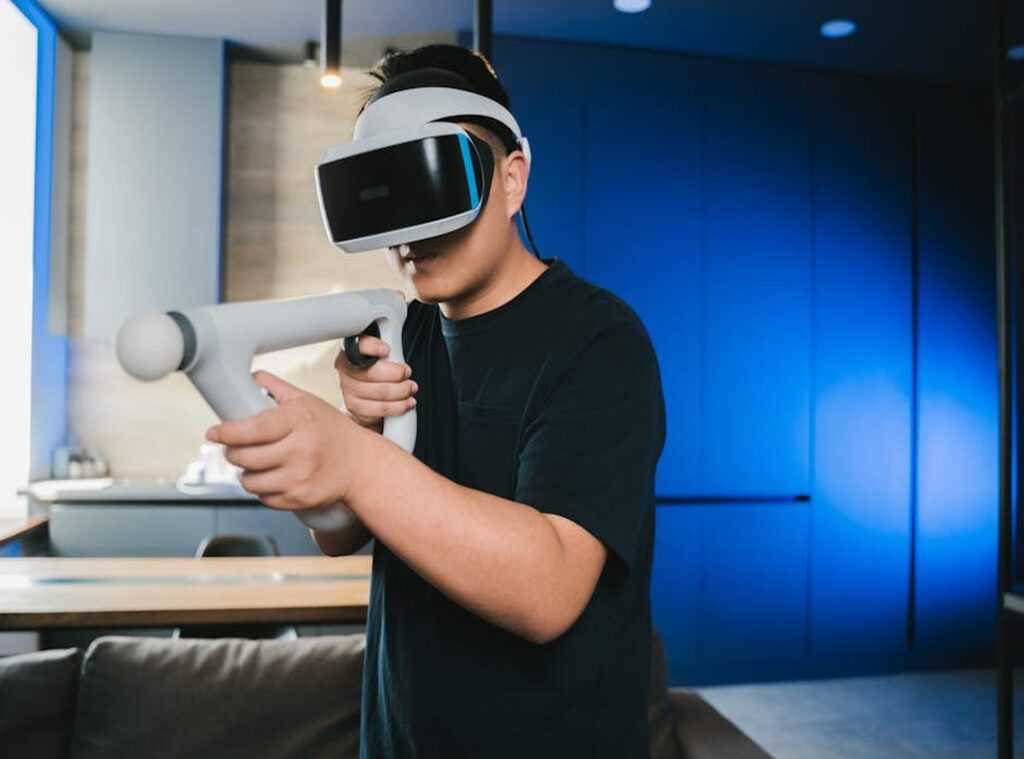

If you’re searching for ways to reduce input lag gaming, you’re likely tired of split-second delays costing you matches. In competitive and casual play alike, even a few milliseconds between your input and on-screen response can mean missed shots, failed combos, or lost ranking points. This article is designed to give you clear, actionable strategies to minimize input lag across your entire setup—from monitor settings and GPU configurations to controller choices and network optimization.
We break down the technical causes of input delay in simple terms, then walk you through proven fixes used by competitive players and performance-focused enthusiasts. Our recommendations are based on hands-on testing of gaming hardware, analysis of esports tech trends, and real-world performance comparisons—not guesswork.
By the end, you’ll know exactly where lag comes from, how to measure it, and the specific steps you can take today to achieve smoother, more responsive gameplay.
Your Hardware: The First Line of Defense Against Lag
High Polling Rate Peripherals
Polling rate (Hz) refers to how often your mouse or keyboard reports its position to your PC each second. A 1000Hz polling rate means your device updates 1,000 times per second—effectively every 1 millisecond. For competitive play, 1000Hz is the minimum standard. Lower rates (like 125Hz) introduce measurable delay (8ms per report), which can mean the difference between landing a flick shot or watching the killcam.
Modern 4000Hz+ mice reduce that interval to 0.25ms. Is that overkill? Some argue human reaction time (~200ms on average, per NIH research) makes the difference negligible. But in high-level play, it’s about consistency and micro-adjustments (think Valorant or CS2 clutch moments).
Pro tip: Enable high polling in your mouse software—and make sure your CPU can handle it without stutter.
The Monitor’s Role
Don’t confuse response time (GtG) with input lag. GtG (gray-to-gray) measures how fast pixels change color. Input lag is the delay between your action and what appears on screen. A monitor can have 1ms GtG and still feel sluggish if its processing delay is high.
A 144Hz+ refresh rate reduces the time between frames (6.94ms at 144Hz vs. 16.67ms at 60Hz). That smoother frame delivery is critical if you want to reduce input lag gaming setups depend on.
Display Connection Matters
Use DisplayPort when possible. It supports higher refresh rates and adaptive sync (G-Sync/FreeSync) more reliably than older HDMI versions. Double-check your cable version—your 240Hz monitor won’t magically run at 240Hz on an outdated cable.
Wired vs. Wireless
Old myth: wireless equals lag. Modern “lightspeed” or “hyperspeed” tech matches wired latency (tested by RTINGS and others). The real enemy? Signal interference.
- Keep the dongle close to your mouse.
- Avoid USB hubs when possible.
- Reduce 2.4GHz congestion.
Clean signal. Clean shots. (Your aim still has to do the rest.)
System-Level Tuning: Optimizing Your OS for Speed
If you want smoother gameplay without buying new hardware (because GPUs aren’t exactly pocket change), system-level tuning is your next move.
GPU Driver Settings
In NVIDIA Control Panel, set Low Latency Mode → Ultra. In AMD Software, toggle Anti-Lag → On. These features shrink the render queue—the line of frames your CPU prepares ahead of your GPU. A shorter queue means faster input response (fewer “why didn’t that shot register?” moments).
Some argue Ultra can slightly reduce peak FPS. That’s true in edge cases—but competitive players typically prefer responsiveness over a marginal frame bump. According to NVIDIA documentation, Low Latency Mode reduces pre-rendered frames to improve responsiveness in CPU-bound scenarios.
Windows Optimizations
Make Windows work for you:
- Enable Game Mode (Settings → Gaming → Game Mode)
- Right-click the game’s .exe → Properties → Disable fullscreen optimizations
- Set Power Plan to High Performance
These tweaks prioritize system resources for your game, helping reduce input lag gaming sessions often suffer from when background tasks spike CPU usage.
For a deeper breakdown, check out how to optimize pc settings for maximum fps and stability.
Debloating Your System
Background overlays from:
- Discord
- Steam
- GeForce Experience
can inject hooks into your game. Disable overlays before competitive sessions (yes, even that one). Fewer hooks = fewer latency variables.
Updating Core Components
Keep GPU drivers, chipset drivers, and mouse firmware current. Driver updates often include latency optimizations and stability fixes (AMD and NVIDIA both note this in release logs).
Pro tip: Update, reboot, test—don’t stack changes all at once. Even small tweaks can stack up to noticeable gains.
In-Game Settings: The Final Frontier of Latency
If you’ve upgraded your mouse, monitor, and GPU but your game still feels “off,” the culprit is often hiding in plain sight: your settings menu.
The V-Sync Dilemma
V-Sync (Vertical Synchronization) syncs your GPU’s frame output to your monitor’s refresh rate to prevent screen tearing—that split-screen effect where frames look misaligned. Sounds good, right? The catch is that V-Sync forces your GPU to wait for the monitor’s timing cycle, which adds input lag.
To reduce input lag gaming, turn V-Sync OFF in-game. If your monitor supports G-Sync or FreeSync (adaptive sync technologies that dynamically match refresh rate to frame rate), use those instead. They prevent tearing without the same delay penalty.
NVIDIA Reflex & AMD Anti-Lag
These features tackle system latency—the total delay between your click and the action appearing on screen. NVIDIA Reflex and AMD Anti-Lag streamline how frames queue between CPU and GPU, reducing bottlenecks.
If available, enable On + Boost for Reflex. “Boost” keeps the GPU more responsive during CPU-heavy moments (like chaotic team fights), shaving off extra milliseconds.
Fullscreen vs. Borderless
Exclusive Fullscreen gives the game direct control over display output. Borderless Windowed runs through the desktop compositor, which can add delay. For competitive play, Exclusive Fullscreen almost always delivers lower latency.
Render Scaling and Resolution
Lowering resolution or enabling DLSS/FSR (AI-based upscaling that renders at lower internal resolution) reduces GPU workload. Less strain means frames render faster—and faster frames mean faster feedback. Sometimes clarity is worth sacrificing for responsiveness (ask any esports pro).
Level Up Your Performance Today
You came here looking for real ways to reduce input lag gaming and gain a competitive edge. Now you understand what causes input delay, how your hardware and settings affect responsiveness, and which optimizations actually make a difference when every millisecond counts.
Input lag isn’t just a technical annoyance—it’s the difference between landing the shot or missing it, clutching the round or watching the respawn screen. When your setup holds you back, your skill can’t fully shine.
The good news? You don’t have to settle for slow response times. By optimizing your display settings, upgrading the right components, and fine-tuning your system, you can unlock smoother, faster, and more consistent gameplay.
If you’re serious about eliminating delay and maximizing performance, start optimizing your setup today. Follow proven strategies, use trusted tools, and implement the tweaks that competitive players rely on. Take action now and transform your gaming experience into the low-latency, high-performance system you deserve.
 Ask Frances Nunesards how they got into hot topics in gaming and you'll probably get a longer answer than you expected. The short version: Frances started doing it, got genuinely hooked, and at some point realized they had accumulated enough hard-won knowledge that it would be a waste not to share it. So they started writing.
What makes Frances worth reading is that they skips the obvious stuff. Nobody needs another surface-level take on Hot Topics in Gaming, Gaming Setup Optimization Tips, Expert Breakdowns. What readers actually want is the nuance — the part that only becomes clear after you've made a few mistakes and figured out why. That's the territory Frances operates in. The writing is direct, occasionally blunt, and always built around what's actually true rather than what sounds good in an article. They has little patience for filler, which means they's pieces tend to be denser with real information than the average post on the same subject.
Frances doesn't write to impress anyone. They writes because they has things to say that they genuinely thinks people should hear. That motivation — basic as it sounds — produces something noticeably different from content written for clicks or word count. Readers pick up on it. The comments on Frances's work tend to reflect that.
Ask Frances Nunesards how they got into hot topics in gaming and you'll probably get a longer answer than you expected. The short version: Frances started doing it, got genuinely hooked, and at some point realized they had accumulated enough hard-won knowledge that it would be a waste not to share it. So they started writing.
What makes Frances worth reading is that they skips the obvious stuff. Nobody needs another surface-level take on Hot Topics in Gaming, Gaming Setup Optimization Tips, Expert Breakdowns. What readers actually want is the nuance — the part that only becomes clear after you've made a few mistakes and figured out why. That's the territory Frances operates in. The writing is direct, occasionally blunt, and always built around what's actually true rather than what sounds good in an article. They has little patience for filler, which means they's pieces tend to be denser with real information than the average post on the same subject.
Frances doesn't write to impress anyone. They writes because they has things to say that they genuinely thinks people should hear. That motivation — basic as it sounds — produces something noticeably different from content written for clicks or word count. Readers pick up on it. The comments on Frances's work tend to reflect that.